Installation -- Cobasoft Note
XCOPY-Deployment and License
CsNote is using XCOPY deployment. This means, that there's no installation program and you can just copy the program into any target folder. You might use an existing or new folder, or even memory sticks.
License keys should be entered into the License Registration dialog as soon as possible.
After Downloading
After downloading the file,
copy it to your target folder.
Then run it
once as administrator or elevated
and go to "Tools/Setup..."
You will see options to register the extension and install shortcuts.
Choose the options you need, click OK, and check the results.
If the registration succeeds,
CsNote will be associated with all ".RTF" files.
However, depending on your operating system version,
it might still not be set as the default application.
In that case, you will need to use Windows® means to make it the default.
Normally it should be sufficient to just open any RTF file.
Windows should then prompt for the default application.
Open With...
You can use "Open With..." in the Windows® context menu of RTF files, to register Cobasoft Note as default application for RTF files.
You might also use this same context menu, to open RTF files with other applications, like Microsoft® Word®, but this is not recommendable, because these will write additional markup into the RTF. It would still work with CsNote, but might get larger.
It's also possible to use CsNote without extension registration. In this case, you cannot open RTF files by just clicking on them, but by opening them from the CsNote "File/Open..." menu or the Windows® context menu.
Automatic Update Check
Cobasoft Note periodically connects to our servers to check for software updates. During this process, only the application version and license ID are transmitted. This information is used solely to inform you about updates. No personal data is collected or stored beyond what is necessary for this function. For more information, please refer to our Privacy Policy .
Screenshot
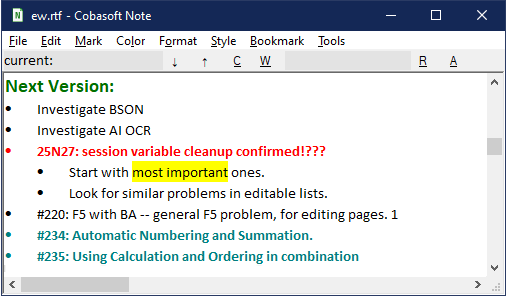
Cobasoft Note, with some sample content, looks like this: